Blog / Lipsync Video from a Photo — Image to Talking Video
Lipsync Video from a Photo — Image to Talking Video
How to turn a face photo and speech audio or text into a lipsync video with Grab Media.
By Tamilselvan M. · 2026-09-30 · 6 min read
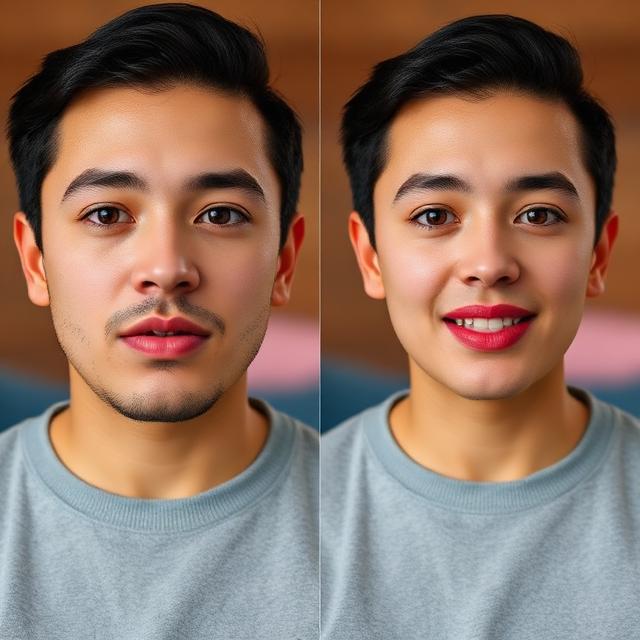
What lipsync does
Lipsync takes a still face photo and makes the mouth move with spoken words. Use it for a talking portrait, a short explainer, or a draft where you already have a face image and a script.
On Grab Media, open Image to lipsync video at /libsync. Upload one clear, front-facing face photo, then add speech audio or type the words to speak. The job produces a video of that face speaking.
Steps to create a lipsync video
Open the lipsync page and sign in if you want the job saved to your account.
Upload a sharp, front-facing face photo. One face works best. Keep the image under the upload size limit.
Add speech audio, or type the speech text and choose Male or Female when the tool speaks the text for you.
If a length and price are configured, pick a duration. A remaining daily free schedule skips checkout; otherwise complete payment before the job is queued.
When status shows completed, preview and download the video from your task list.
Tips and responsible use
Use a well-lit face that looks toward the camera. Side profiles and busy backgrounds make the mouth harder to match.
Short, clear speech is easier to follow than a long noisy recording.
Only use photos and voices you own or have permission to animate. Do not lipsync someone else's face to mislead viewers.